
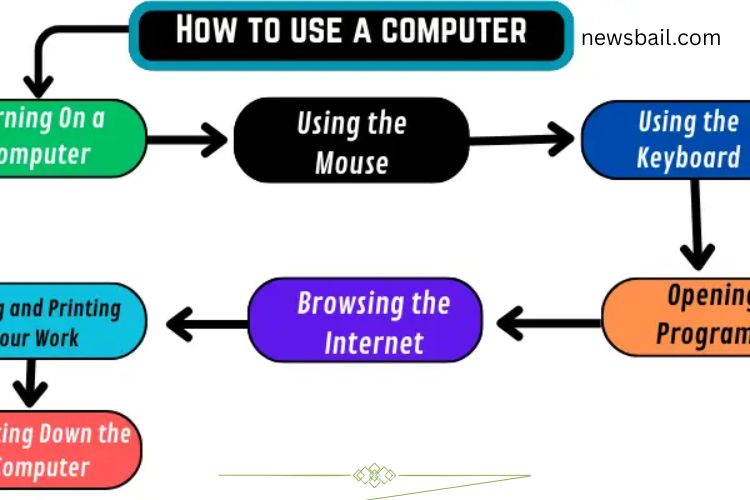
Learning how to use a computer is an essential skill in today’s digital world. From school assignments and work tasks to entertainment and communication, computers are a vital tool. Understanding the basics—turning on the device, navigating with a mouse and keyboard, opening programs, and using the internet—makes your digital experience seamless and productive. This guide walks you through every step of using a computer efficiently, with easy-to-follow instructions designed for beginners.
Read More: Ultimate Guide to Webcams: Discover the Powerful Types That Transform Your Online Experienc
Getting Started: Turning On Your Computer
The first step in using a computer is powering it on. Most computers have a circular button with a line symbol, typically located on the front or side of the monitor or CPU. Press this button to start the system. Wait a few moments as the computer boots up, displaying your desktop or a login screen.
If a login screen appears, enter your username and password, then press Enter. You are now ready to begin exploring your computer.
Mastering the Mouse
The mouse is an essential tool for navigating a computer. Proper mouse usage allows you to select items, open programs, and interact with applications efficiently.
- Place your hand comfortably on the mouse.
- Move the mouse to control the cursor on your screen.
- Click the left button to select items, open files, or activate programs.
- Use the right button to access context menus for additional options.
- Scroll through documents and web pages using the scroll wheel (if available).
With practice, using a mouse will feel natural and intuitive, improving your productivity.
Typing Made Easy: Using the Keyboard
The keyboard allows you to input text, numbers, and commands. Here’s how to get started:
- Place your fingers on the keyboard with your thumbs resting near the spacebar.
- Press the keys corresponding to letters, numbers, or symbols to type.
- Use the Enter key to start a new line or execute commands.
- Employ the Backspace key to correct mistakes.
- Utilize the Shift key for capital letters and special symbols.
Learning keyboard shortcuts, such as Ctrl + C to copy and Ctrl + V to paste, can save time and make navigation faster.
Opening Programs and Applications
Programs, also called applications, are the software you use to perform tasks on your computer. To open a program:
- Locate the Start button at the bottom-left corner of your screen.
- Click the Start menu and browse through the program list.
- Select a program such as Word for writing documents or Paint for drawing.
- Use the mouse to interact with the program once it opens.
Understanding how to access and use programs is key to making your computer experience efficient and enjoyable.
Exploring the Internet
The internet opens a world of information, entertainment, and communication. To browse the web:
- Click on your preferred browser icon, such as Google Chrome or Mozilla Firefox.
- Type a website address, like www.google.com
, into the address bar and press Enter. - Click on links, images, or videos to explore content.
- Use tabs to open multiple websites simultaneously.
- Bookmark frequently visited sites for quick access.
Internet browsing skills allow you to research, shop, connect with others, and stay updated with news and trends.
Creating, Saving, and Printing Work
Whether you are writing a report, drawing, or working on a project, saving your work is essential. Here’s how:
- Click File in your program’s menu bar.
- Select Save As to choose a location on your computer.
- Enter a descriptive file name.
- Click Save to store your work.
- To print your work:
- Click File, then choose Print.
- Select your printer and adjust settings if needed.
- Click Print to produce a physical copy.
Consistently saving your files prevents data loss and ensures your projects remain organized.
Shutting Down Your Computer
Properly shutting down your computer protects files and maintains system health. Follow these steps:
- Close all open programs by clicking the X in each window’s corner.
- Click the Start button, then select Shut Down.
- Wait for the computer to power off completely before turning off any external devices.
Regularly shutting down your computer can prevent crashes and improve long-term performance.
Tips for Efficient Computer Use
- Stay Organized: Keep your desktop and files tidy. Create folders for different projects.
- Regular Updates: Keep your operating system and software updated for security and performance.
- Keyboard Shortcuts: Learn shortcuts to navigate faster and save time.
- Safe Browsing: Use trusted websites and avoid suspicious downloads.
- Practice Regularly: Frequent use strengthens your confidence and speed.
Mastering these habits ensures that your computer skills continue to grow and remain effective.
Troubleshooting Common Issues
Even beginners may encounter minor problems when using a computer. Here are simple solutions:
- Frozen Screen: Press Ctrl + Alt + Delete to open Task Manager and close unresponsive programs.
- Slow Performance: Restart your computer or close unnecessary programs running in the background.
- Internet Problems: Check your Wi-Fi connection or restart your router.
- Keyboard/Mouse Issues: Ensure devices are connected properly and check batteries if wireless.
Knowing basic troubleshooting can save time and reduce frustration.
Building Confidence with Practice
The key to mastering computer use is practice. Start with simple tasks like typing documents, browsing websites, and using basic programs. Gradually explore advanced features like creating presentations, editing images, or managing files more efficiently.
As your familiarity grows, you will gain confidence and enjoy the full potential of your computer. Remember, patience and consistent practice are crucial when learning new skills.
Frequently Asked Questions:
What does “mastering a computer” mean?
Mastering a computer means learning essential skills to operate it confidently, including using a mouse, keyboard, software programs, and the internet efficiently. It’s about becoming independent and comfortable with technology.
How long does it take to become confident using a computer?
The time varies depending on your starting experience and how often you practice. With consistent effort, beginners can gain basic confidence in just a few weeks.
What are the first steps to learning computer skills?
Start with powering on your computer, navigating the desktop, learning mouse and keyboard basics, opening programs, and saving files. Gradually explore more advanced features like internet browsing and software tools.
Can I learn computer skills on my own, or do I need a class?
You can learn independently with tutorials, online guides, and practice. However, structured courses or workshops can accelerate learning and provide personalized guidance.
Which programs should beginners learn first?
Essential programs include word processors (like Microsoft Word), web browsers (Chrome, Firefox), email applications, and basic tools for spreadsheets and presentations.
How can I improve my typing speed and accuracy?
Practice regularly using online typing tools and exercises. Focus on proper finger placement, accuracy first, and gradually increase speed.
Is it important to learn internet safety and security?
Yes, understanding safe browsing, creating strong passwords, avoiding suspicious downloads, and protecting personal information are critical for all computer users.
Conclusion
Mastering your computer opens the door to greater confidence, efficiency, and limitless opportunities in today’s digital world. By learning essential skills—navigating the desktop, using the mouse and keyboard, opening programs, browsing the internet, and managing files—you can handle everyday tasks with ease and independence. Consistent practice, safe browsing habits, and exploration of new tools strengthen your abilities and make technology less intimidating. Whether for work, school, or personal projects, developing strong computer skills empowers you to unlock your full potential and thrive in an increasingly digital world.