A monitor connector is the bridge between your computer and your screen. It transfers video signals so you can see clear, smooth images on your monitor. Choosing the right connector is essential for achieving high-quality visuals, whether you’re gaming, working, or streaming. Today’s devices support various types of connectors, each with unique features. From legacy analog connections to advanced digital interfaces, understanding your options ensures the best display experience.
Read More: Mini: Unlocking the Key Distinctions: The Strengths and Limitations of Mini vs. Micro Computers!
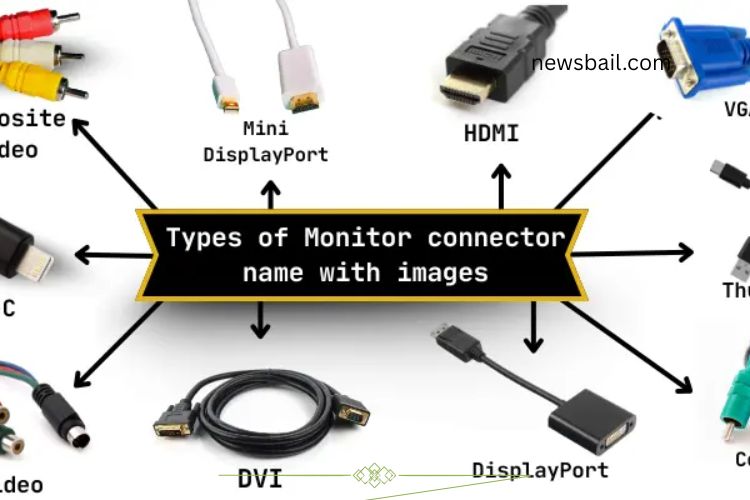
Types of Monitor Connectors
Monitor connectors are categorized into two main types: analog and digital. Analog connectors were standard in older monitors and TVs, while digital connectors dominate modern devices due to better image quality and faster data transfer. Let’s explore each type in detail.
Analog Monitor Connectors
Analog connectors transmit continuous electrical signals to display images. While they offer lower resolution than digital connectors, some older devices still use them for compatibility. Common analog connectors include:
- VGA (Video Graphics Array)
- Composite Video
- S-Video
- Component Video
- VGA (Video Graphics Array)
VGA is one of the oldest monitor connectors, widely used in computers and older monitors. It transmits analog signals and has a distinctive blue plug with 15 pins. While it still works on legacy systems, it cannot support modern high-resolution displays, making it less suitable for today’s monitors.
Composite Video
Composite video uses a single cable, typically yellow, to transmit video signals. This connector was common in older TVs and monitors. It delivers lower-quality images, often appearing blurry or washed out compared to modern options.
S-Video
S-Video separates brightness and color signals for better image quality than composite video. It was popular in older DVD players and TVs but only transmits video, not audio. S-Video has mostly fallen out of use today.
Component Video
Component video splits video signals into three cables—red, blue, and green—providing clearer and more vibrant images than composite video. It was common in older high-definition TVs and DVD players, but digital connectors have largely replaced it for superior image quality.
Digital Monitor Connectors
Digital connectors transmit video signals as binary data (0s and 1s), delivering sharper images, higher resolutions, and faster data transfer. They support advanced displays, including HD, 4K, and even 8K monitors. Modern devices almost exclusively use digital connectors for their clarity and performance. Key digital connectors include:
- HDMI (High-Definition Multimedia Interface)
- DVI (Digital Visual Interface)
- DisplayPort
- Mini DisplayPort
- USB-C
- Thunderbolt
- HDMI (High-Definition Multimedia Interface)
HDMI is the most widely used connector for monitors, TVs, and gaming consoles. It transmits both video and audio in one cable, simplifying connections. HDMI supports high-definition and 4K resolutions, delivering clear and smooth visuals. Its convenience and compatibility make it a favorite for home and professional setups alike.
DVI (Digital Visual Interface)
DVI can transmit digital and analog signals, providing flexibility for various monitors. It delivers high-quality video but does not carry audio. Many older and some modern monitors support DVI, making it a reliable choice for a crisp, clear display.
DisplayPort
DisplayPort is designed for high-performance computing and modern monitors. It carries both video and audio, supporting high resolutions, fast refresh rates, and vibrant colors. DisplayPort can also drive multiple monitors from a single cable, making it ideal for gamers, designers, and professionals seeking top-tier performance.
Mini DisplayPort
Mini DisplayPort offers the same capabilities as DisplayPort but in a smaller form factor, ideal for laptops and compact devices. It supports high-quality video and audio, ensuring clear and sharp images without taking up much space.
USB-C (Universal Serial Bus Type-C)
USB-C has become increasingly popular for connecting monitors. Its reversible design allows easy plugging, and it supports power, data, and video transfer simultaneously. USB-C can deliver high-definition video and audio, making it a versatile connector for modern laptops and displays.
Thunderbolt
Thunderbolt is a high-speed connector capable of transferring data, video, and power all at once. It is compatible with a wide range of devices, including monitors, storage drives, and laptops. Thunderbolt delivers ultra-fast performance and supports high-resolution displays, making it ideal for professional setups and high-end gaming.
Choosing the Best Monitor Connector
Selecting the right connector affects your display quality and overall experience. Consider your monitor’s capabilities, your device’s ports, and your intended use.
Top recommendations:
- DisplayPort – Best for gaming and professional work due to high refresh rates, multi-monitor support, and excellent image quality.
- HDMI – Ideal for home entertainment and general use, offering audio-video convenience.
- USB-C – Perfect for laptops and future-proof setups, supporting video, power, and data transfer.
Steps to Select the Right Monitor Connector
- Check your monitor ports: Inspect the back of your monitor to identify available connectors such as HDMI, VGA, or DisplayPort.
- Check your device ports: Determine which ports your computer, laptop, or other device supports.
- Consider your needs: For high-quality visuals, choose HDMI or DisplayPort. For basic displays, VGA may suffice.
- Plan for the future: Select connectors that can support higher resolutions and multiple monitors, like DisplayPort or USB-C.
- Get compatible cables: Ensure your cable matches both your device and monitor connectors for seamless connectivity.
Why the Right Connector Matters
Using the correct connector ensures your monitor displays the sharpest images, smoothest motion, and accurate colors. The wrong connector can limit resolution, reduce refresh rates, and even cause flickering or signal loss. Modern connectors like DisplayPort and HDMI provide reliable, high-quality performance across devices.
Frequently Asked Questions:
What is a monitor connector?
A monitor connector is a cable or port that links your computer to a monitor. It transfers video (and sometimes audio) signals, enabling your screen to display images clearly and smoothly.
What are the main types of monitor connectors?
Monitor connectors are divided into analog and digital types. Analog includes VGA, Composite Video, S-Video, and Component Video. Digital includes HDMI, DVI, DisplayPort, Mini DisplayPort, USB-C, and Thunderbolt.
Which connector provides the best display quality?
For modern monitors, DisplayPort and HDMI provide the best image quality, high resolutions, and smooth refresh rates. USB-C and Thunderbolt also offer excellent quality for laptops and multi-functional devices.
Can I use an old VGA connector with a modern monitor?
Yes, if your monitor supports VGA, but image quality may be lower than digital connectors. VGA cannot deliver high resolutions or sharp visuals like HDMI or DisplayPort.
Does HDMI carry audio too?
Yes, HDMI transmits both video and audio signals in a single cable, making it convenient for monitors, TVs, and gaming setups.
What is the difference between DisplayPort and Mini DisplayPort?
Mini DisplayPort is a smaller version of DisplayPort, offering the same high-quality video and audio signals. It is often used on laptops and compact devices.
Is USB-C compatible with all monitors?
Not all monitors have USB-C ports. USB-C supports video, audio, and power transfer but requires both your monitor and device to have compatible ports.
Conclusion
Choosing the right monitor connector is essential for achieving sharp, vibrant, and smooth visuals on your screen. From legacy analog options like VGA and Component Video to modern digital standards such as HDMI, DisplayPort, USB-C, and Thunderbolt, each connector serves a specific purpose. For the best performance, prioritize digital connectors that support high resolutions, fast refresh rates, and multi-monitor setups. Understanding your device’s ports and your display needs ensures a seamless, future-proof setup. By selecting the right connector, you unlock your monitor’s full potential and enjoy an enhanced viewing experience, whether for work, gaming, or entertainment.