
The computer monitor is more than just a screen—it’s your window into the digital world. Whether you’re working, gaming, or streaming movies, the monitor brings every image, video, and piece of text to life. Without it, the computer is just a silent machine. Understanding how monitors work, their types, features, and advantages can help you make smarter choices and get the most out of your digital experience.
Read More: The Fascinating World of LED Monitors: Explore Their Evolution, Powerful Types, and Everyday Uses
What Is a Computer Monitor?
A computer monitor is a display device that shows images, videos, and text generated by a computer. Think of it as a TV, but one designed specifically for computing tasks. It allows you to interact with software, view content, and enjoy multimedia experiences. Modern monitors are far more advanced than their predecessors, offering vibrant colors, high resolutions, and smooth refresh rates that enhance everything from gaming to professional work.
The Evolution of Monitors
Monitors have come a long way since their inception. Over decades, they’ve evolved from bulky, black-and-white screens to slim, colorful, and highly efficient displays.
CRT Monitors: The Early Days (1960s–1970s)
Cathode Ray Tube (CRT) monitors were the first type of computer displays. Heavy and deep, they resembled old television sets and initially displayed only black-and-white images. While revolutionary at the time, they were bulky and consumed significant power.
Color CRTs and Improved Designs (1970s–1980s)
Advancements led to color CRT monitors, making computing more visually engaging. These were still large but started gaining popularity for business and personal use.
LCD Monitors: Slim and Energy Efficient (1980s)
Liquid Crystal Display (LCD) monitors revolutionized computing with thinner designs, reduced weight, and lower energy consumption. LCDs made it easier to fit monitors into smaller workspaces while offering sharper images than CRTs.
LED and OLED Monitors: Modern Displays (2000s–Today)
LED monitors brought brighter colors, thinner screens, and higher resolutions, enhancing visual clarity. OLED displays pushed the boundaries further, providing richer colors, deeper blacks, and ultra-slim designs that dominate today’s market.
How a Computer Monitor Works
A monitor transforms electronic signals from your computer into visible images. Here’s a simplified overview:
- The computer sends video signals to the monitor.
- The monitor interprets these signals.
- Pixels on the screen light up in various colors.
- Images, videos, or text appear clearly.
- The monitor refreshes rapidly to ensure smooth motion.
Modern monitors operate at high refresh rates, delivering seamless visuals essential for gaming, editing, and high-speed applications.
Types of Monitors

Monitors are designed for specific needs and come in different technologies:
- CRT Monitors: Classic bulky screens, mostly obsolete today.
- LCD Monitors: Slim, lightweight, energy-efficient displays.
- LED Monitors: Brighter, more colorful, and thinner than LCDs.
- OLED Monitors: Ultra-thin, high-contrast displays with exceptional colors.
- Touchscreen Monitors: Enable direct interaction via touch.
- Plasma Monitors: Rare but once popular for large, bright displays.
- Curved Monitors: Provide immersive viewing experiences.
- 4K and 8K Monitors: Ultra-high resolutions for professional and entertainment use.
- Portable Monitors: Lightweight displays for mobile work setups.
Common Uses of Monitors
Monitors enhance productivity, entertainment, and communication. Key uses include:
- Browsing the internet
- Streaming movies and videos
- Playing video games
- Studying or learning online
- Working with documents and spreadsheets
- Creating digital art and designs
- Video calls and virtual meetings
- Online shopping
- Programming and coding
- Photo and video editing
Key Features of Computer Monitors
A great monitor combines technology with comfort and efficiency. Important features to consider:
- Screen Size: Larger screens improve visibility and multitasking.
- Resolution: Higher resolution delivers sharper, detailed images.
- Refresh Rate: Higher rates create smoother motion, crucial for gaming.
- Brightness: Adequate brightness ensures clear viewing in any lighting.
- Contrast Ratio: Enhances color depth and clarity.
- Response Time: Faster response reduces blur in fast-paced visuals.
- Ports: Multiple ports allow connectivity with different devices.
- Touchscreen: Adds convenience for interaction.
- Speakers: Built-in audio for an all-in-one solution.
- Adjustable Stand: Customizable height and tilt for ergonomic comfort.
Monitor Connectors
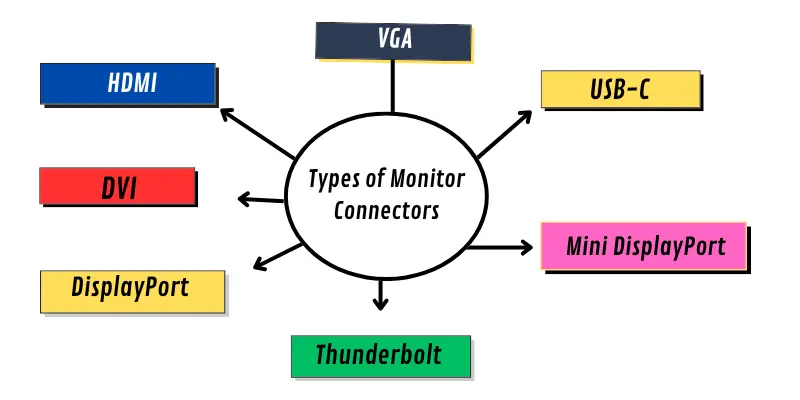
Different connectors transmit video and audio signals between computers and monitors:
- VGA: Legacy connector for basic video.
- HDMI: High-quality video and audio in one cable.
- DVI: Provides clear digital video signals.
- DisplayPort: Modern standard for high-quality video and audio.
- USB-C: Carries video, audio, and power simultaneously.
- Mini DisplayPort: Compact version of DisplayPort for portable devices.
- Thunderbolt: Ultra-fast transfer of video, data, and power.
Parts of a Monitor
A monitor consists of several essential components that ensure smooth operation:
- Screen: Displays images, videos, and text.
- Frame: Provides structure and support.
- Stand: Keeps the monitor upright and adjustable.
- Power Button: Turns the monitor on or off.
- Ports and Cables: Enable connectivity and data transfer.
- Control Buttons: Adjust settings like brightness and contrast.
- Speakers: Optional built-in audio.
- Vents: Dissipate heat and prevent overheating.
Functions of a Monitor
Monitors serve as the bridge between the computer and the user:
- Display Output: Shows text, images, videos, and graphics.
- Communication: Enables interaction with software and applications.
- Visual Interface: Displays menus, icons, and clickable elements.
- Real-Time Viewing: Updates instantly for accurate input response.
- Multimedia Support: Enhances video, animation, and graphic quality.
Advantages of Computer Monitors
Monitors offer numerous benefits for both personal and professional use:
- Clear, vibrant images
- Supports work, study, and entertainment
- Large screens improve visibility
- Easy to operate
- Ideal for gaming and multimedia
- Adjustable for comfort
- Accurate color reproduction
- Smooth performance for fast applications
- High-definition video support
Disadvantages of Computer Monitors
While essential, monitors have some limitations:
- Occupy desk space
- Can cause eye strain over time
- Higher-end models can be expensive
- Limited portability
- Consume electricity
- Can overheat with prolonged use
- Glare from lights can affect visibility
- Susceptible to dust and fingerprints
- Heavier models are harder to move
- Additional cables may be required
Choosing the Right Monitor
Selecting the ideal monitor depends on your needs. Gamers should prioritize refresh rates and response times, designers should look for color accuracy and high resolution, while casual users may focus on screen size and affordability. Consider connectivity options, ergonomic design, and extra features like built-in speakers or touch capabilities.
Frequently Asked Questions:
What is a computer monitor?
A computer monitor is a display device that shows images, videos, text, and graphics from a computer. It acts as a visual interface, allowing users to interact with software, view multimedia, and work efficiently.
How do monitors work?
Monitors receive signals from a computer and convert them into tiny pixels of light on the screen. These pixels combine to form images, videos, and text, which update in real time for smooth viewing.
What are the main types of computer monitors?
Common types include CRT, LCD, LED, OLED, touchscreen, curved, 4K/8K, and portable monitors. Each type serves different purposes, such as gaming, professional work, or general use.
Which monitor is best for gaming?
For gaming, choose monitors with high refresh rates (120Hz or above), low response times (1–5ms), and vibrant color accuracy. Curved or ultrawide monitors can also enhance the gaming experience.
How important is screen resolution?
Screen resolution determines how sharp and detailed the images appear. Higher resolutions, like 4K or 8K, provide clearer visuals, which are essential for design, video editing, and immersive gaming.
What features should I look for in a monitor?
Key features include screen size, resolution, refresh rate, response time, contrast ratio, brightness, connectivity options, and ergonomic adjustability. Touchscreen and built-in speakers are optional but convenient.
Can a monitor affect eye health?
Yes. Poor-quality monitors, glare, low refresh rates, and improper brightness settings can cause eye strain or fatigue. Choosing a monitor with flicker-free technology and adjusting settings properly reduces strain.
Conclusion
A computer monitor is more than just a screen—it’s the gateway to your digital world. From the early days of bulky CRTs to today’s sleek OLED and 4K displays, monitors have evolved to deliver stunning clarity, vibrant colors, and smooth performance. Choosing the right monitor depends on your needs, whether it’s for gaming, professional work, or everyday use. By understanding the types, features, and functions of monitors, you can unlock peak performance, enhance productivity, and enjoy an immersive viewing experience. Investing in a high-quality monitor ensures sharper visuals, reduced eye strain, and a more engaging digital lifestyle.